
II. Scheduling
III. ?
Adding second sessions

- Go to the “Manage Program” item in the left menu in the Round you want (here, Round 3).
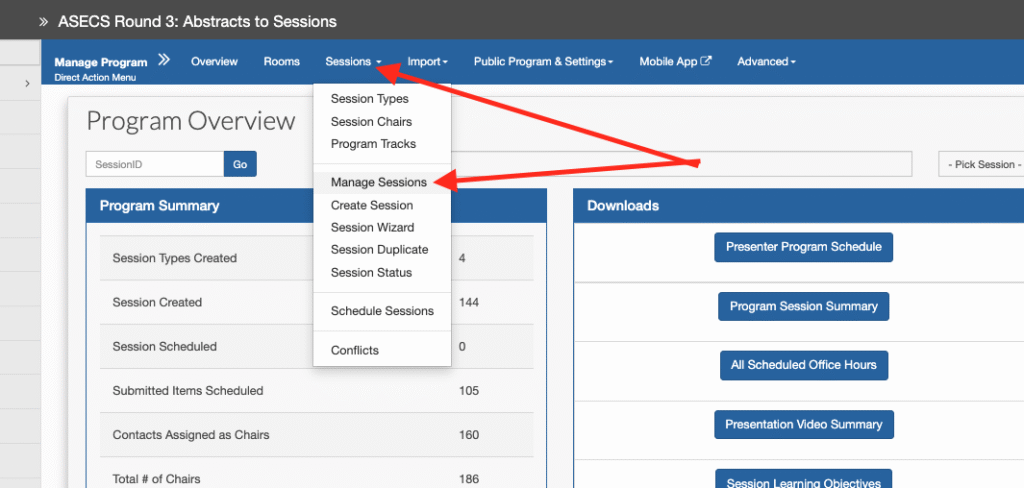
2. Go to “Sessions” and then “Manage Sessions”.
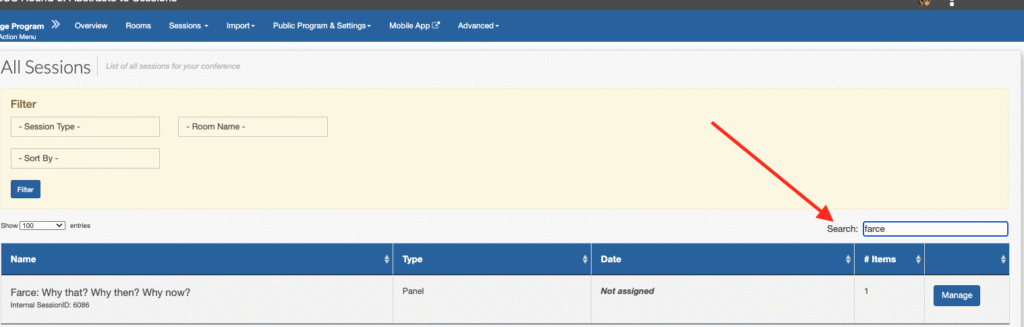
3. In the Search bar, type in the session you want. Then click “Manage” (the button on the right).

4. Click on the “Details” button to edit the title and other items as necessary.
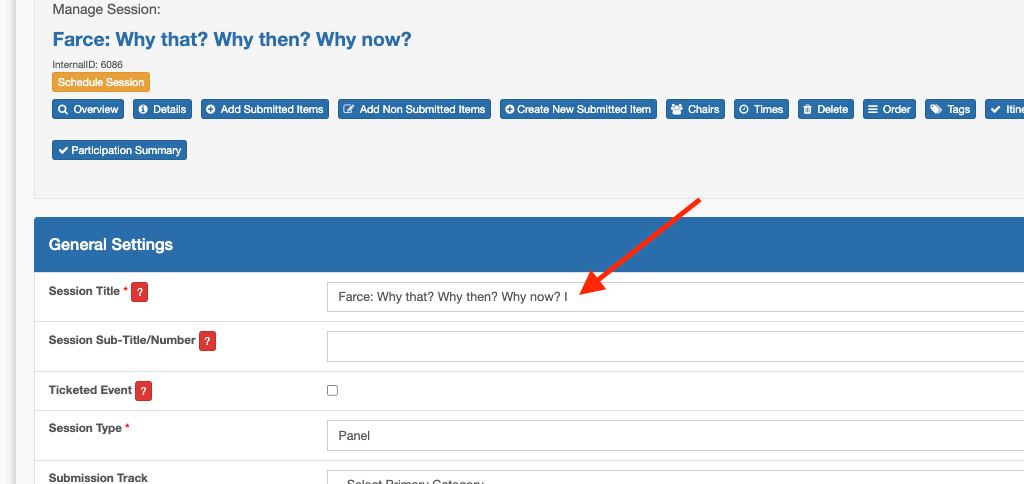
5. Edit the “main” session (I, 1, etc.).
Tip: Copy the title here so that you’ll have it when you add the second session later.
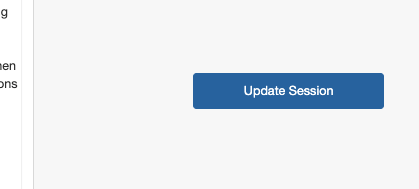
Make sure you click on the “Update Session” button on the right to save your changes.

6. Click on “Chairs” to verify that the chair in this session is correct. It will open up to the chair page; make note of the names and edit if necessary.


7. Now go back to the Manage Program menu and click “Create Session” under Sessions.
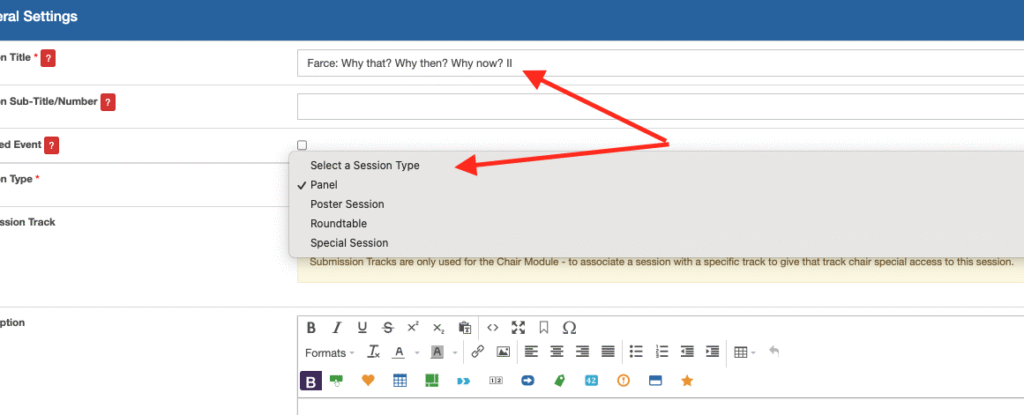
8. Now paste the title you copied earlier, and add the correct number to it (II, 2, etc.). You must select a session type as well.
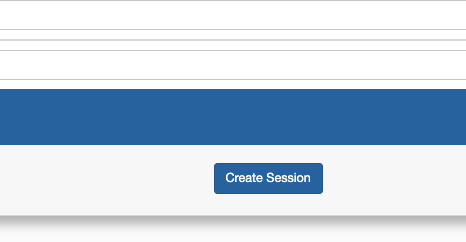
Scroll to the bottom of the page and click “Create Session” to save it.
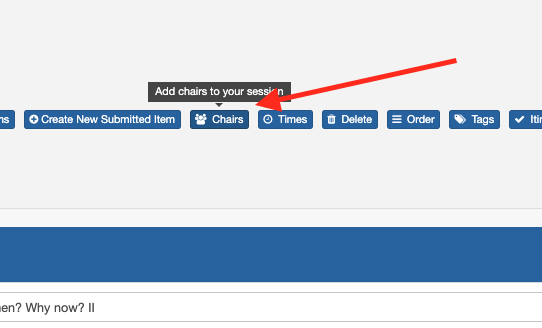
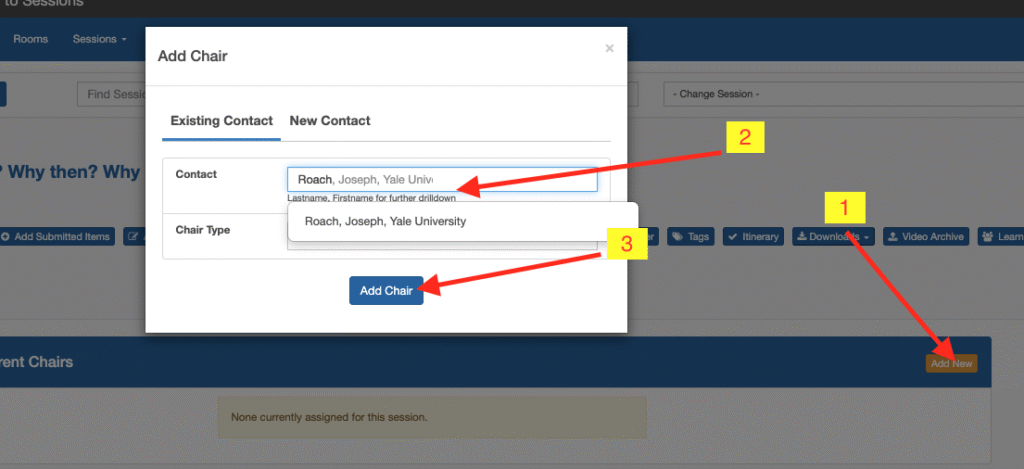
9. Go back to the Session and click “Chairs.” On the next screen, click “Add New” on the right side of the bar, then type in the name in the pop-up box, and then click “Add Chair”.

10. You can find the initial submission (ID 69 here), the chair’s role as a “track chair” of their session, and then the two sessions in the “Track Chair” module if you want to verify that they’ve been added.